
Creating your first poll
Create and publish your first InviziPoll survey with the guided wizard: title, questions, timing, and distribution.
Use the guided Create poll wizard to publish a structured poll in minutes. You set a title, questions, timing, optional demographics, and distribution options, then publish. At publish time the app generates encryption keys in your browser. Sensitive key material is not sent as plaintext.
Prerequisites
- You are signed in to the admin app for your workspace.
- You know the audience size well enough to clear the results unlock threshold (see Viewing results).
- On plans that use team folders, know whether this poll should be private or live in a team folder (see Setting up team folders).
Why this matters - Clear titles and answer labels make aggregates readable later.
- Open Create PollFrom the sidebar choose Polls, then Create Poll, or use Create a new poll from the home dashboard.
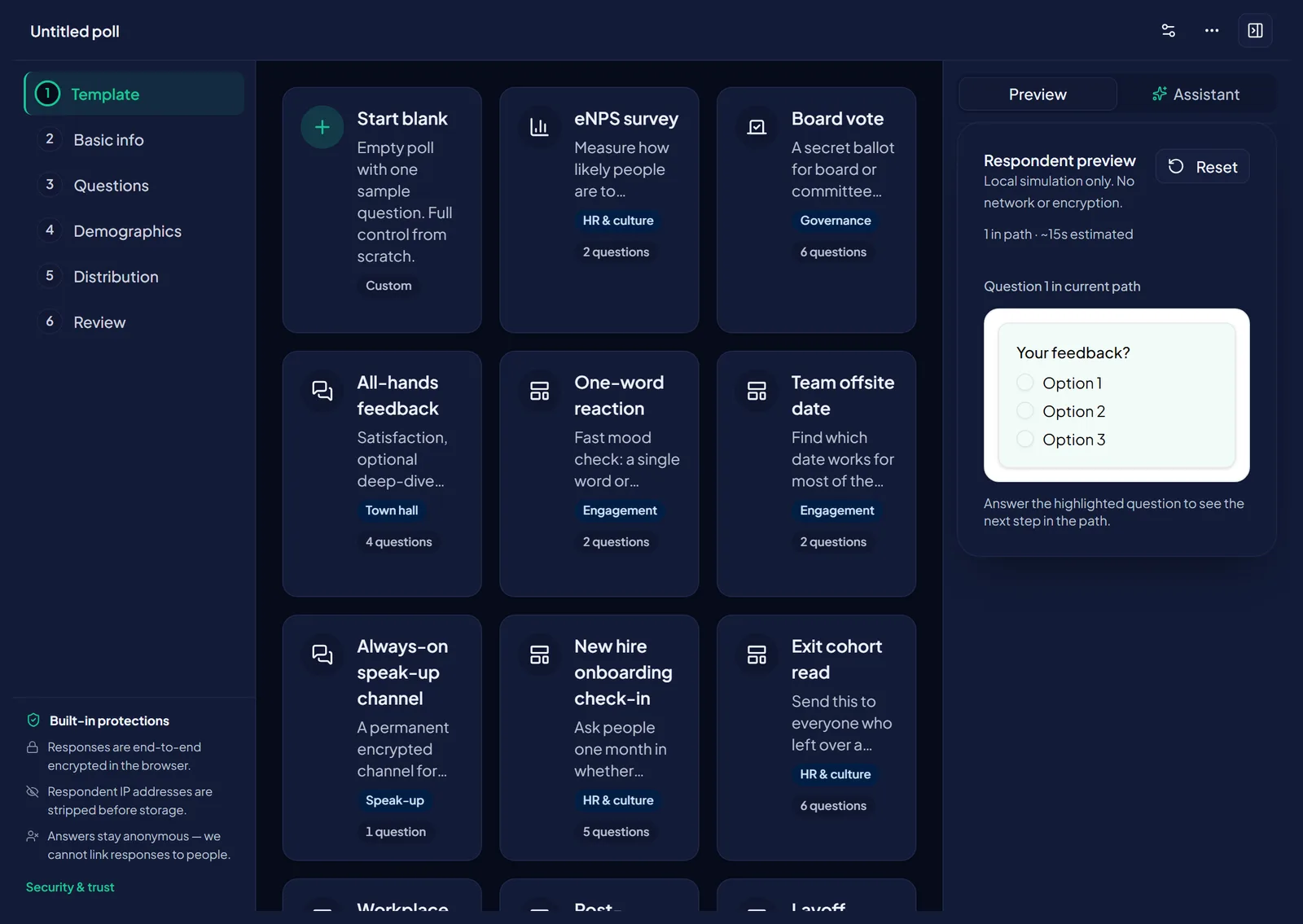
- Start from a template or blankPick a template if it fits, or continue with a blank poll.
- Fill Basic info - set the title, choose Private poll or a team folder when available, and set expiration date and time. Optionally set retention after close (for example 7-90 days); the UI explains that responses are permanently deleted after that period.
- Add QuestionsAdd multiple-choice, scale, or other supported types. Prefer concrete labels.
- Optional DemographicsAdd cohort dimensions only if you need filtered breakdowns later. Small filtered groups may stay locked; see Demographic cohorts and thresholds.
- Review DistributionSet recommended minimum recipients, optional max respondents, PIN, and public-results options. Details: Sharing your poll.
- PublishOn Review, confirm and click Publish poll. Wait for Publishing… to finish. Keys are created client-side at this step.
Classic editor
Prefer a single-page form? Choose Use the classic editor from the wizard subtitle or the poll list footer. The guided wizard is still recommended for first-time authors.
Tips before you share
- Set a realistic expiration; you can still close early from poll settings.
- Plan distribution so you are likely to clear the unlock threshold before the poll closes.
- Preview the respondent view when available so wording matches what people will see.
Next: Sharing your poll.
FAQ
Do I need a team folder to create a poll? On many plans you can keep a poll private. Enterprise-style workspaces may require a folder; owners often get a private My Polls folder automatically. See Setting up team folders.
Can I edit questions after publish? Treat publish as the handoff to respondents. Prefer finishing wording before you share the link. Close and create a new poll if the instrument must change substantially.
Where are encryption keys created? In the browser at publish time. The service stores public material and encrypted artifacts, not plaintext poll private keys.
What is next after publish? Copy the link or QR and distribute carefully. Continue with Sharing your poll.