
Inviting a team member
Invite admins and members to your InviziPoll workspace, choose roles, and stay within plan seat limits.
Bring collaborators into your workspace with controlled roles. Invites respect your plan's seat limits. Owners and admins can send invites; the exact capabilities of each role are summarized below and detailed in Roles and permissions (RBAC).
Prerequisites
- You are signed in as an owner or admin with permission to invite users.
- You have an open seat on your plan. At the seat cap, the UI disables invites with copy such as Seat limit reached. Please upgrade your plan to invite more team members.
- You know whether the person should be an admin or a member. Owner is not creatable via invite.
Why this matters - Pick the least privilege that still lets the person do their job. Billing and workspace-destructive actions stay with the owner.
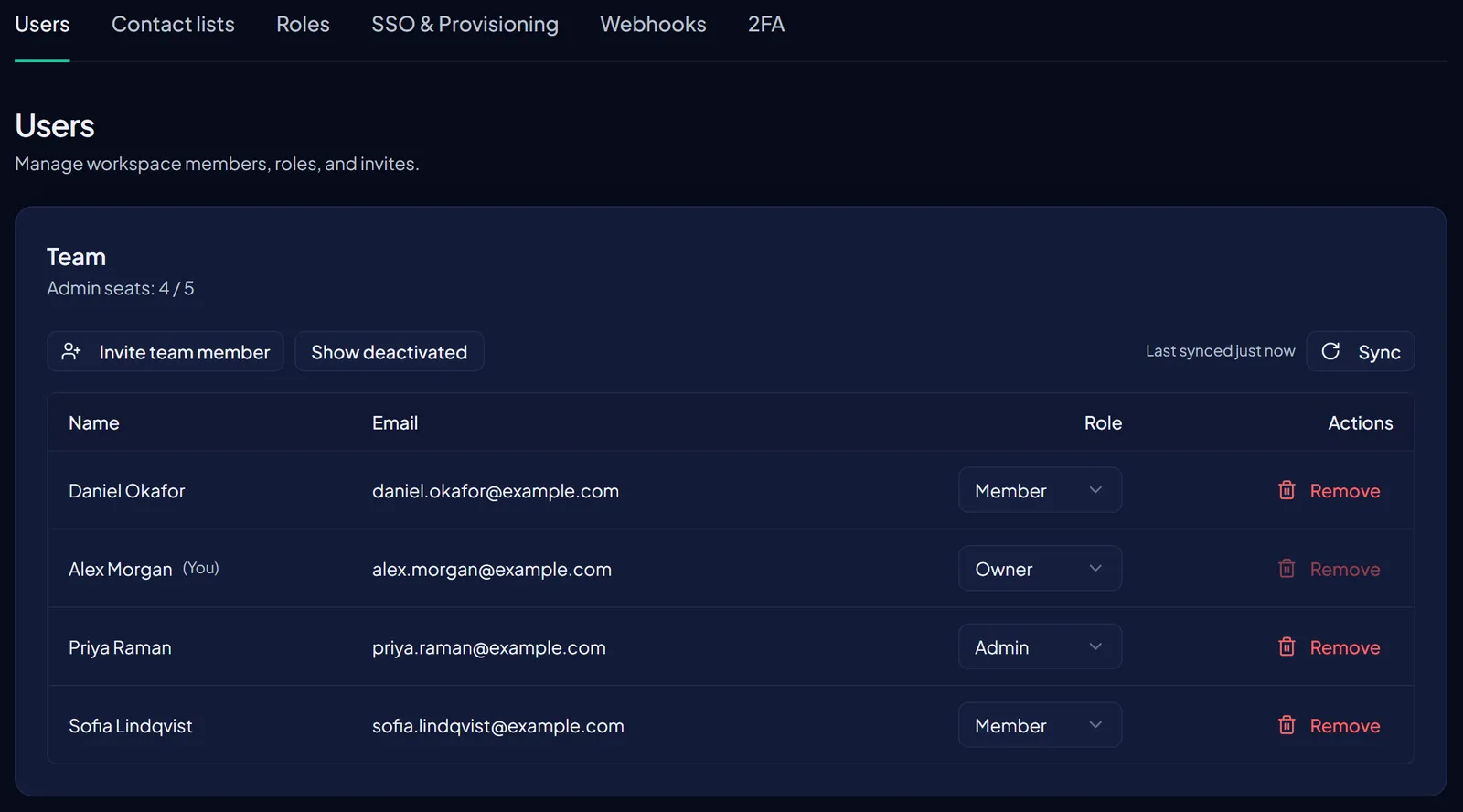
- Open Team → UsersIn the sidebar go to Admin, then the Users tab (team users).
- Start an inviteClick Invite team member to open the invite modal.
- Enter email and roleAdd the colleague's email and choose admin or member.
- Send the inviteConfirm. They receive an invite to accept and complete sign-in.
- They acceptAfter acceptance they can work within their role. Owners still own billing and workspace settings; those areas stay hidden from non-owners.
- Optional: review RolesOpen the Roles tab for the base-role matrix (invite users, change roles, manage 2FA policies, and related capabilities) and custom roles when your plan enables them.
Permissions snapshot
- Owner (one per org, transferable) - Billing, workspace settings, delete workspace, role changes, and enterprise identity features where applicable.
- Admin - Invite and remove members within policy; manage polls and folders as allowed. Cannot override owner-only billing or workspace settings.
- Member - Use the polling app for day-to-day create and participate workflows without team management, workspace settings, or billing.
Seat limits scale by plan tier (free through enterprise). When you hit the admin seat cap, upgrade or free a seat before inviting more people. See Billing, trial, and tier limits.
Collaboration after invite
Shared work usually happens through team folders so collaborators can administer the same polls without sharing secrets out of band. See Setting up team folders. For security depth, also read Security.
FAQ
Can I invite someone as owner? No. Owner is not assigned through the invite modal. Ownership transfer is a separate owner-controlled flow when available.
What happens at the seat limit? Invites are disabled until you upgrade or free a seat. The UI explains the limit in plain language.
Who can change roles later? Owners (and capabilities granted on the Roles matrix) control role changes. Admins typically manage members only.
Where do I learn full RBAC detail? Roles and permissions (RBAC) and Billing, trial, and tier limits.